> ## Documentation Index
> Fetch the complete documentation index at: https://docs.automq.com/llms.txt
> Use this file to discover all available pages before exploring further.
# Databend
> AutoMQ integrates with Databend, enabling cloud-native scalability and Kafka compatibility for efficient big data analytics. Learn how to ingest data from AutoMQ to Databend.
[Databend](https://github.com/datafuselabs/databend) is a next-generation cloud-native data warehouse developed in Rust. It is specifically designed for cloud architecture. Built on object storage, it offers businesses integration with data lakes and warehouses while providing a big data analytics platform that separates compute from storage.
This document will guide you on how to import data from AutoMQ into Databend using [bend-ingest-kafka](https://github.com/databendcloud/bend-ingest-kafka).
## Environment Preparation
### Prepare Databend Cloud and Test Data
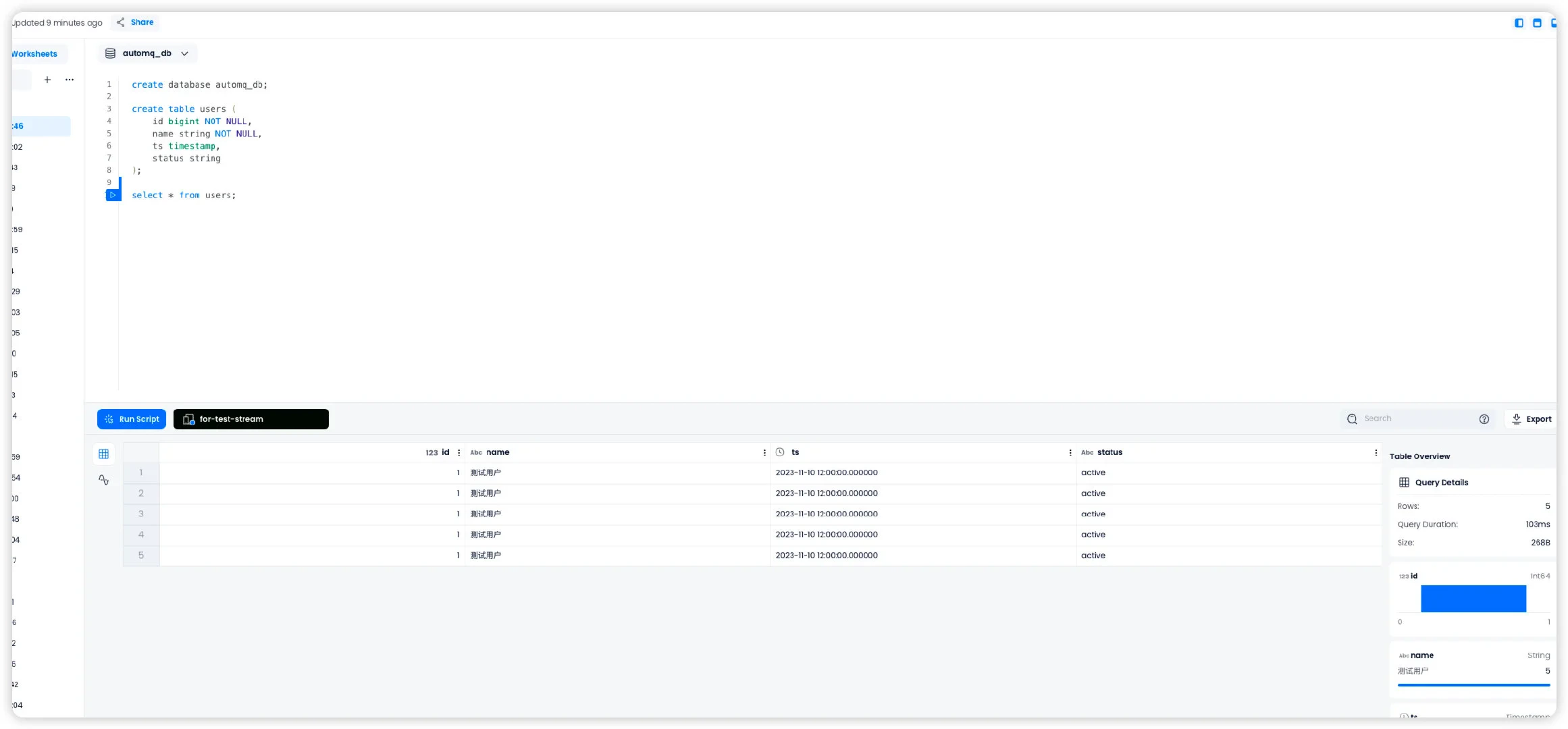
Firstly, visit [Databend Cloud](https://docs.databend.cn/guides/cloud/new-account) to initiate a Warehouse. Then, create databases and test tables within the worksheet.
```sql theme={null}
create database automq_db;
create table users (
id bigint NOT NULL,
name string NOT NULL,
ts timestamp,
status string
)
```
### Prepare AutoMQ and Test Data
Refer to [Deploy Multi-Nodes Cluster on Linux▸](/automq/deployment/deploy-multi-nodes-cluster-on-linux) to set up AutoMQ, making sure there's network connectivity between AutoMQ and Databend.
Quickly create a topic named `example_topic` in AutoMQ and write test JSON data into it by following these steps.
#### **Create Topic**
Use Apache Kafka command-line tools to create a topic. Ensure you have access to the Kafka environment and that the Kafka service is running. Below is an example command for creating a topic:
```bash theme={null}
./kafka-topics.sh --create --topic exampleto_topic --bootstrap-server 10.0.96.4:9092 --partitions 1 --replication-factor 1
```
When executing commands, replace `topic` and `bootstrap-server` with the actual Kafka server addresses.
After creating the topic, you can use the following command to verify whether the topic has been successfully created.
```bash theme={null}
./kafka-topics.sh --describe example_topic --bootstrap-server 10.0.96.4:9092
```
#### **Generate Test Data**
Generate test data in JSON format that corresponds to the previously mentioned table.
```json theme={null}
{
"id": 1,
"name": "Test User",
"timestamp": "2023-11-10T12:00:00",
"status": "active"
}
```
#### **Write Test Data**
Use Kafka's command-line tools or programming methods to write test data into a topic named example\_topic. Here is an example using command-line tools:
```bash theme={null}
echo '{"id": 1, "name": "Test User", "timestamp": "2023-11-10T12:00:00", "status": "active"}' | sh kafka-console-producer.sh --broker-list 10.0.96.4:9092 --topic example_topic
```
When executing the command, replace the topic and bootstrap-server with the actual Kafka server address being used.
You can view the topic data just written using the following command:
```bash theme={null}
sh kafka-console-consumer.sh --bootstrap-server 10.0.96.4:9092 --topic example_topic --from-beginning
```
## Create a Bend-ingest-databend Job
[bend-ingest-kafka](https://github.com/databendcloud/bend-ingest-kafka) is designed to monitor Kafka and batch write data into a Databend Table. After deploying `bend-ingest-kafka`, the data import job can be initiated.
```bash theme={null}
bend-ingest-kafka --kafka-bootstrap-servers="localhost:9094" --kafka-topic="example_topic" --kafka-consumer-group="Consumer Group" --databend-dsn="https://cloudapp:password@host:443" --databend-table="automq_db.users" --data-format="json" --batch-size=5 --batch-max-interval=30s
```
When executing the command, replace kafka-bootstrap-servers with the actual Kafka server address you are using.
### Parameter Description
#### **databend-dsn**
The DSN provided by Databend Cloud for connecting to the warehouse can be found in this documentation.
#### **batch-size**
`bend-ingest-kafka` will gather data until it reaches the specified batch size, then initiate a data synchronization process.
## Verify Data Import
Navigate to the Databend Cloud worksheet and query the `automq_db.users` table. You should confirm that the data has been successfully synchronized from AutoMQ to the Databend Table.