Preface
This guide shows how to integrate AutoMQ [1] with Airbyte [2] and a data warehouse to build a real-time data flow and analytics pipeline.AutoMQ Overview
AutoMQ is a Kafka-compatible streaming platform. For an overview, see AutoMQ Overview.Airbyte Overview
Airbyte is a data integration platform designed to simplify and automate the creation and management of data pipelines. It supports a wide variety of source and target systems, enabling users to easily configure data pipelines through a user-friendly web interface or API. Airbyte offers efficient Extract, Transform, Load (ETL) capabilities with built-in scheduling and monitoring mechanisms to ensure the reliability and performance of data pipelines. Its modular design supports custom connectors to meet diverse data integration demands. Airbyte’s major advantages include high scalability and flexibility, allowing users to swiftly adapt to various data sources and target systems. Built-in data normalization and automated scheduling functionalities enhance the efficiency and consistency of data processing. With containerized deployment, Airbyte streamlines installation and scaling, making it apt for enterprise-level data integration and data warehousing. Additionally, its comprehensive connector library and community support make it an excellent tool for data engineers and analysts to efficiently address complex data integration challenges.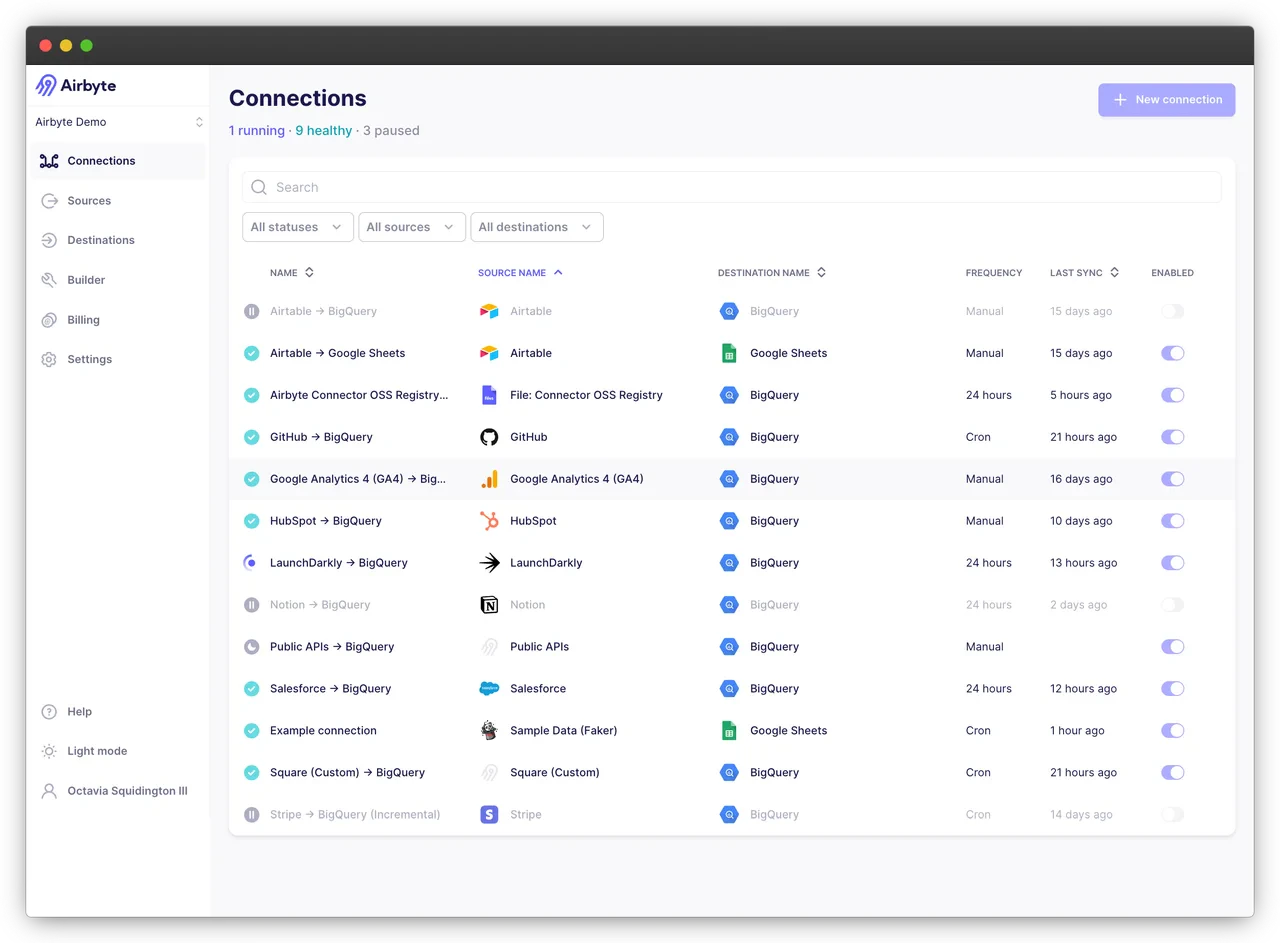
Prerequisites
- Data Source: An available AutoMQ node.
- Data Connector: Available Airbyte Environment.
- Data Endpoint (Data Warehouse): In this example, I’ve selected a cloud-deployed Databricks [3] cluster.
Quick Deployment
Deploy AutoMQ
Deployment can be achieved by consulting the official AutoMQ documentation: Deploy Multi-Nodes Cluster on Linux▸. Once the setup is complete, data preparation can be done using either the Kafka SDK or manually, followed by the data synchronization process. I’ve prepared some data in advance, which can be observed using various visualization tools to monitor AutoMQ node status, such as Redpanda Console [5], Kafdrop [6], and others. Here, I’ve chosen Redpanda Console, where you can see that there are currently 50 topics, each containing 1000 initial messages.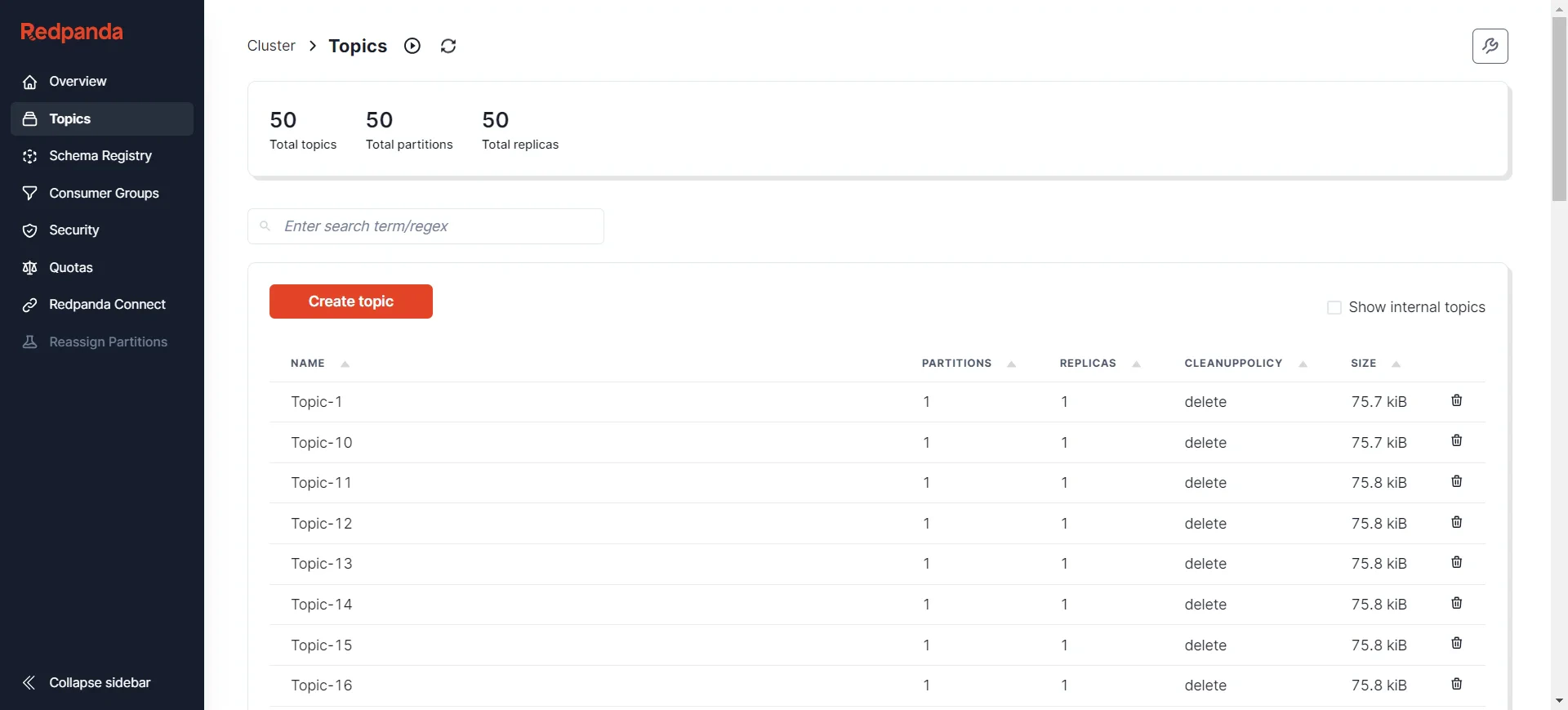
Deploying Airbyte
Refer to the official Airbyte documentation: Quickstart | Airbyte [7]Here, I will use the example of deploying Airbyte on a Linux system.
Environment Preparation
First, you need to installabctl, an official setup tool provided by Airbyte that facilitates quick setup of the required Airbyte environment. Note that this tool requires a Docker environment. If you don’t have Docker installed, see Docker’s installation instructions: Docker Install [8]. You can check your Docker version by running the command docker version:
Preparing the Abctl Tool
To get started with abctl, execute the following commands sequentially. Here, I’m downloading versionversion: v0.9.2:
Deploying the Airbyte Environment
By executing the commandabctl local install, this will pull Airbyte’s images in Docker and deploy the environment using Helm. Some of the logs are as follows:
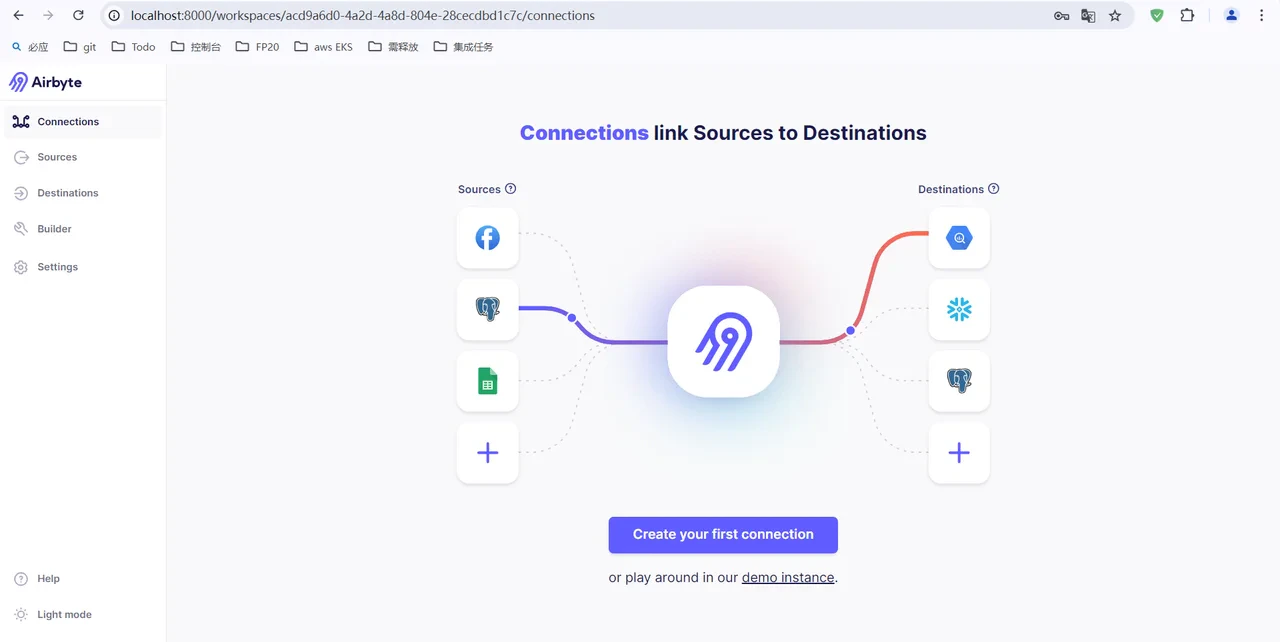
http://localhost:8000 with the default credentials:
- Username:
airbyteyaml - Password:
password
zhaoxi and ktpro123 respectively, you can run the following command:
Deploying Databricks
If you do not yet have a Databricks service available, refer to the official documentation for setup: Google Databricks[9].Data Synchronization
Add New Data Source
Add AutoMQ as a data source. Thanks to AutoMQ’s full compatibility with Kafka, you can set up an AutoMQ data source using Kafka’s data source template. Navigate via the Airbyte interface’s left sidebar -> Sources -> search Kafka, then fill in basic information such as Bootstrap Servers, Protocol, Topic Pattern, etc.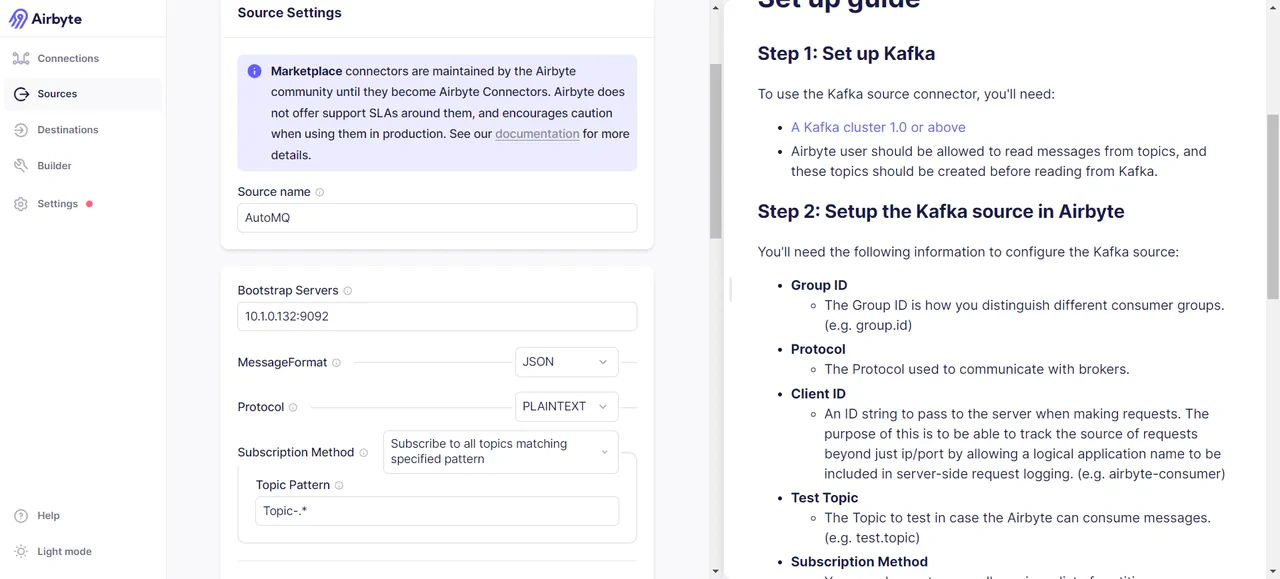
Topic-.* to match all topics with the prefix Topic-. This aligns with the format of my prepared data, so you need to ensure your data can be matched as well. After successful addition, we can see the following results, proving that the data source connection was successful:
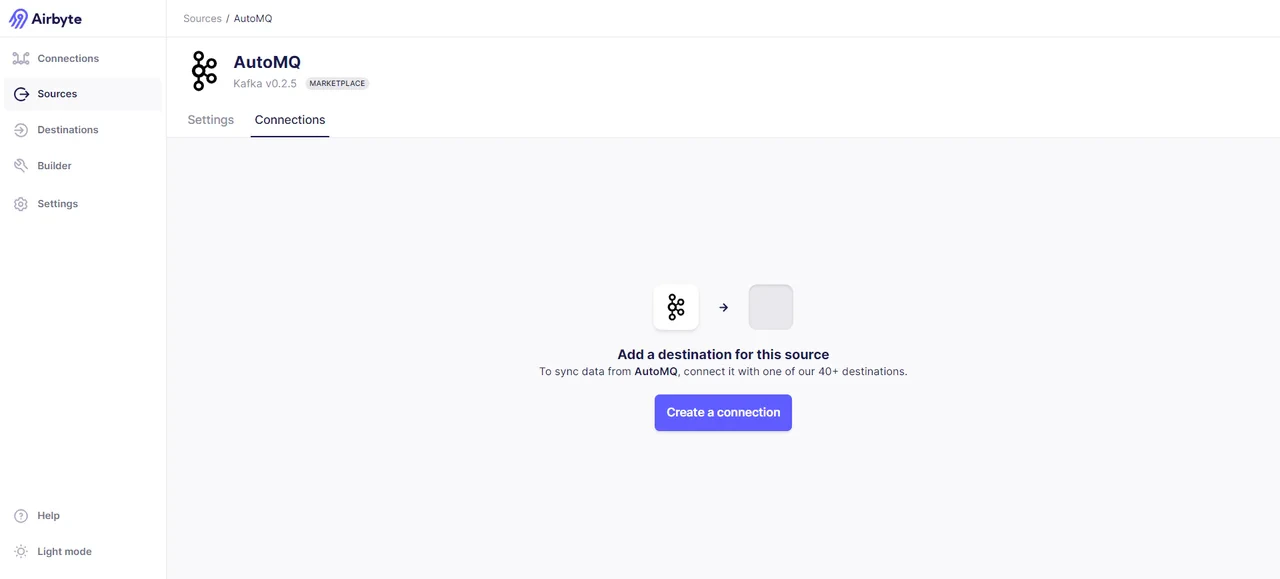
Add Data Destination
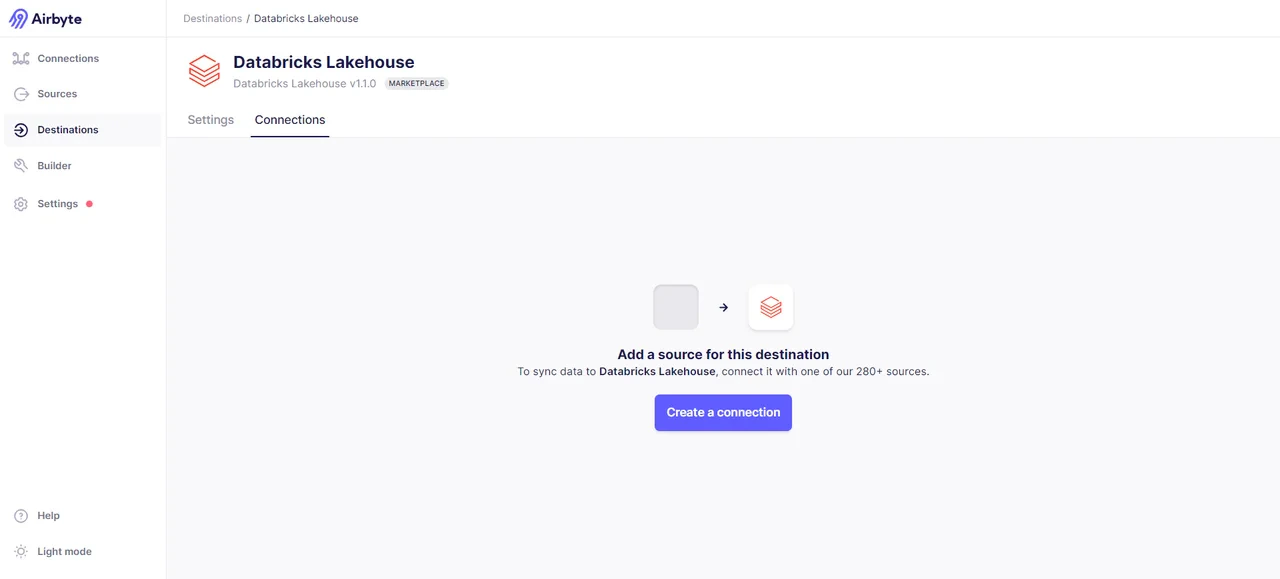
We have chosen Databricks as our data destination, although you can select other options if you wish. For a complete list of supported destinations, visit: Destinations | Airbyte [10]. In the Airbyte interface, go to the sidebar -> Destinations -> Search for Databricks: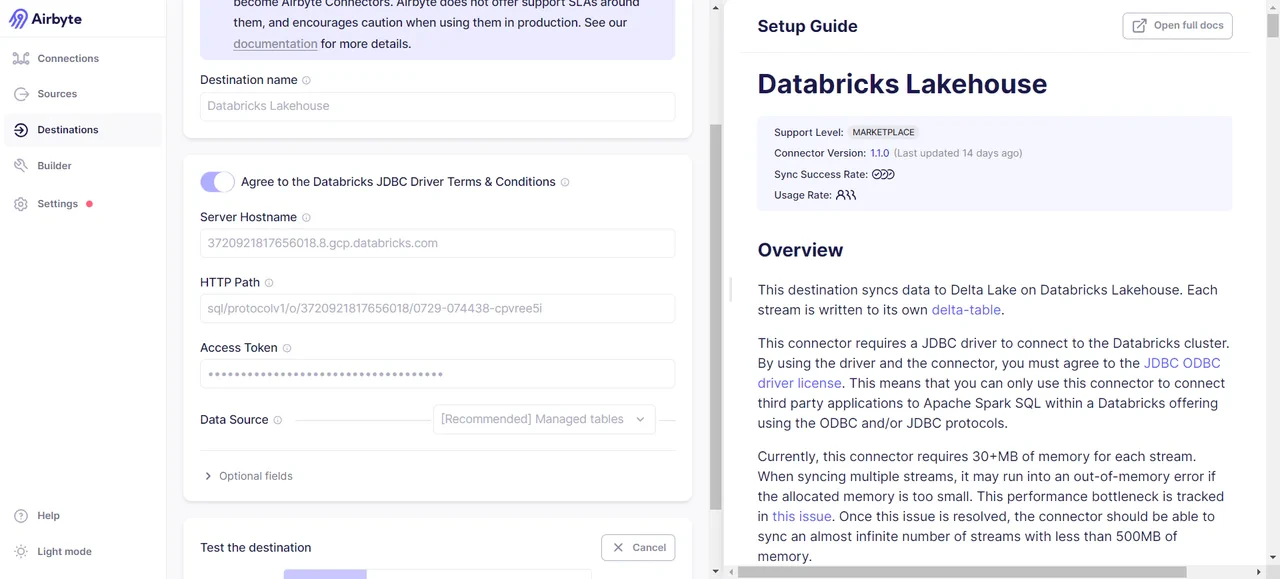
- Go to the created Databricks Cluster -> Select Advanced Options -> JDBC/ODBC, and you will find the values for HTTP PATH and Server Hostname.
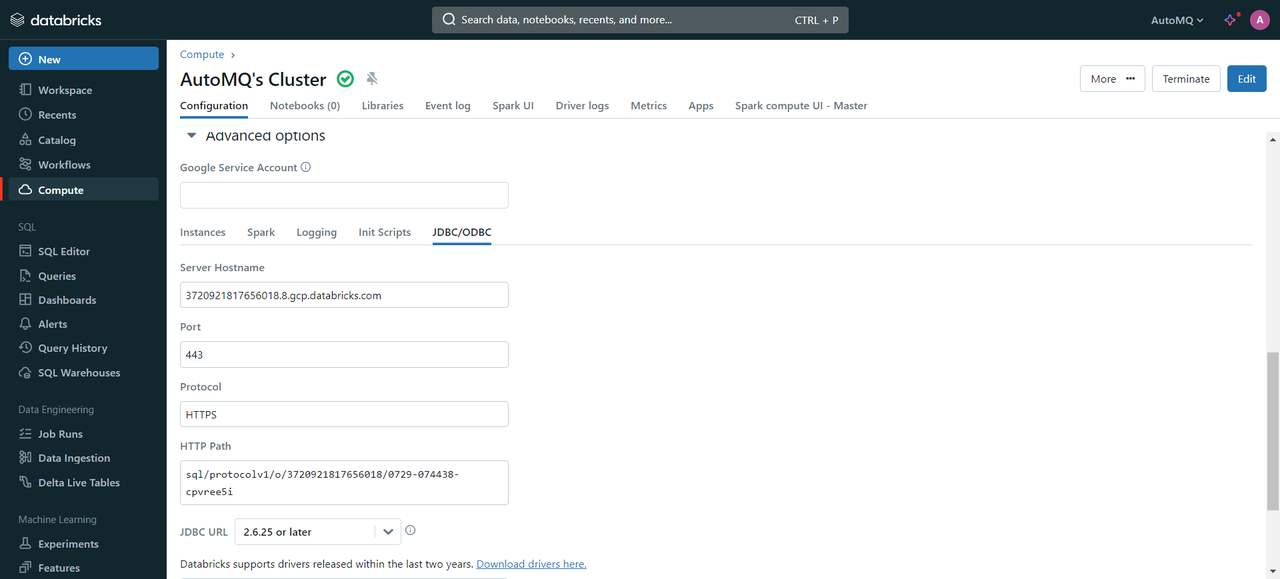
- In the top right corner of the cluster, select the user -> go to Settings -> choose User -> Developer -> AccessToken -> Generate new Token. You will receive a Token similar to
dapi8d336faXXXXXXXXXa6aa18a086c0e.
Initiate Connection and Transfer Data
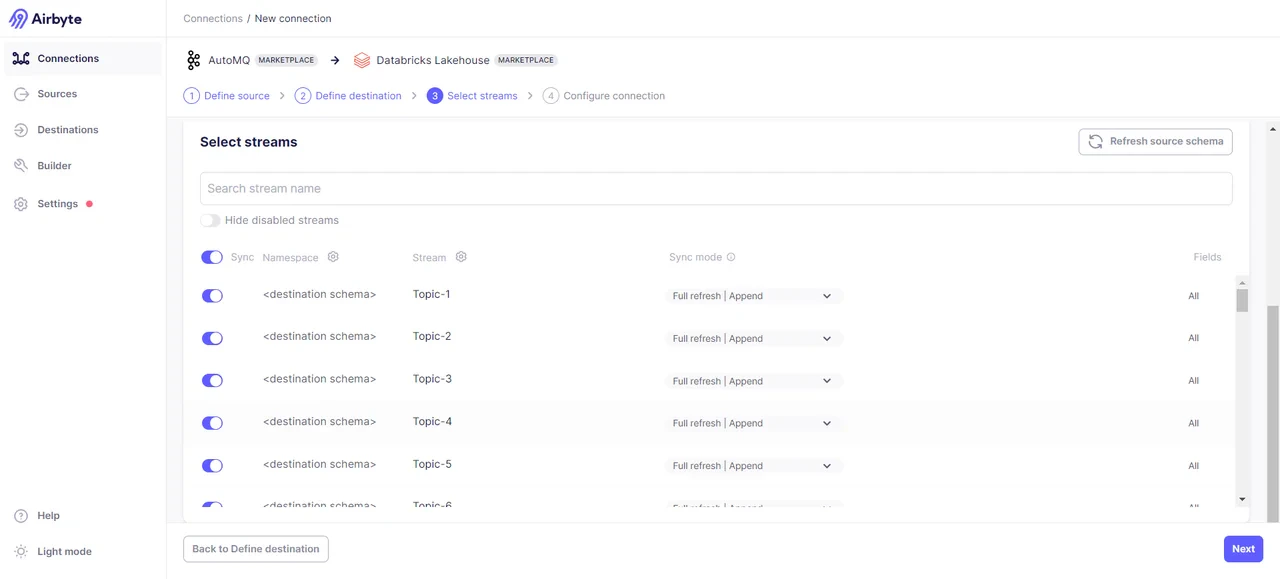
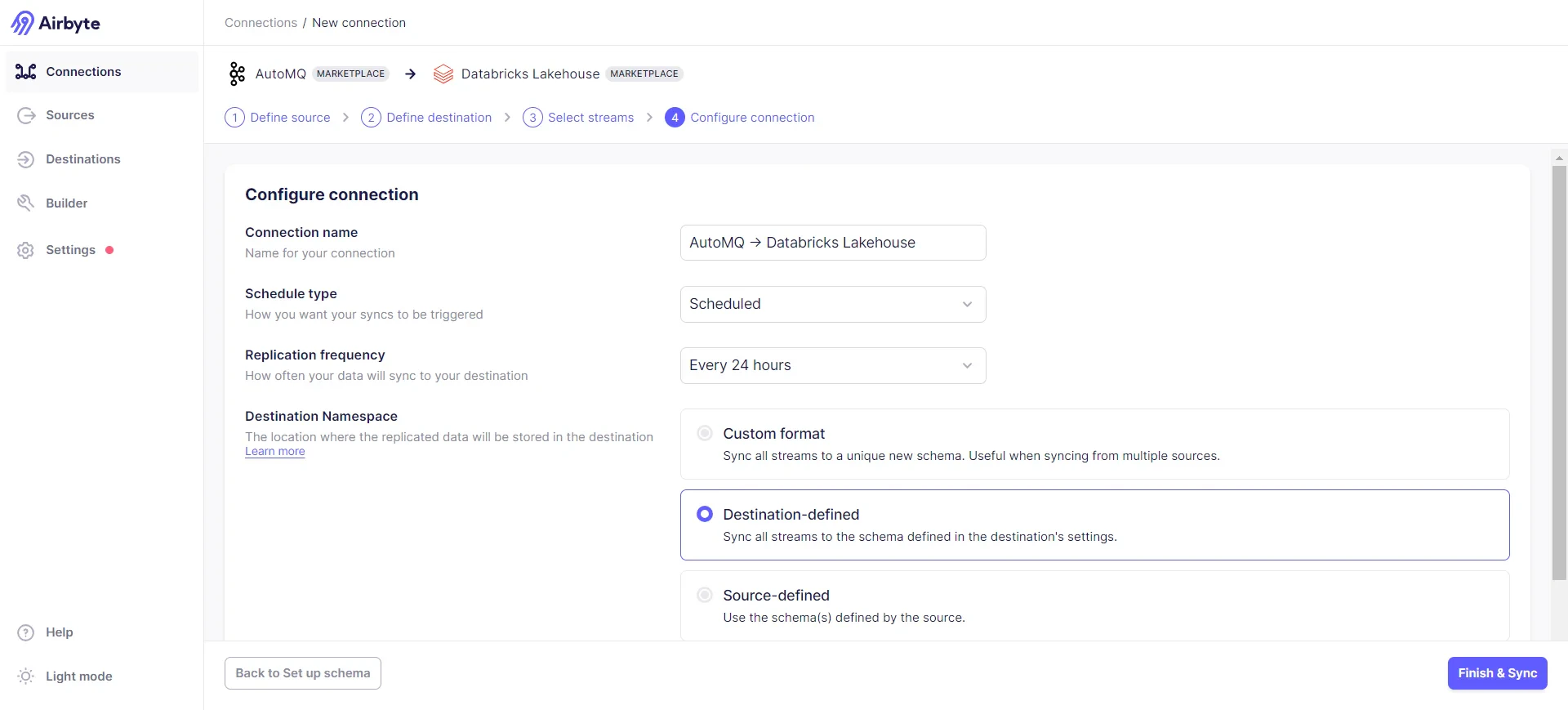
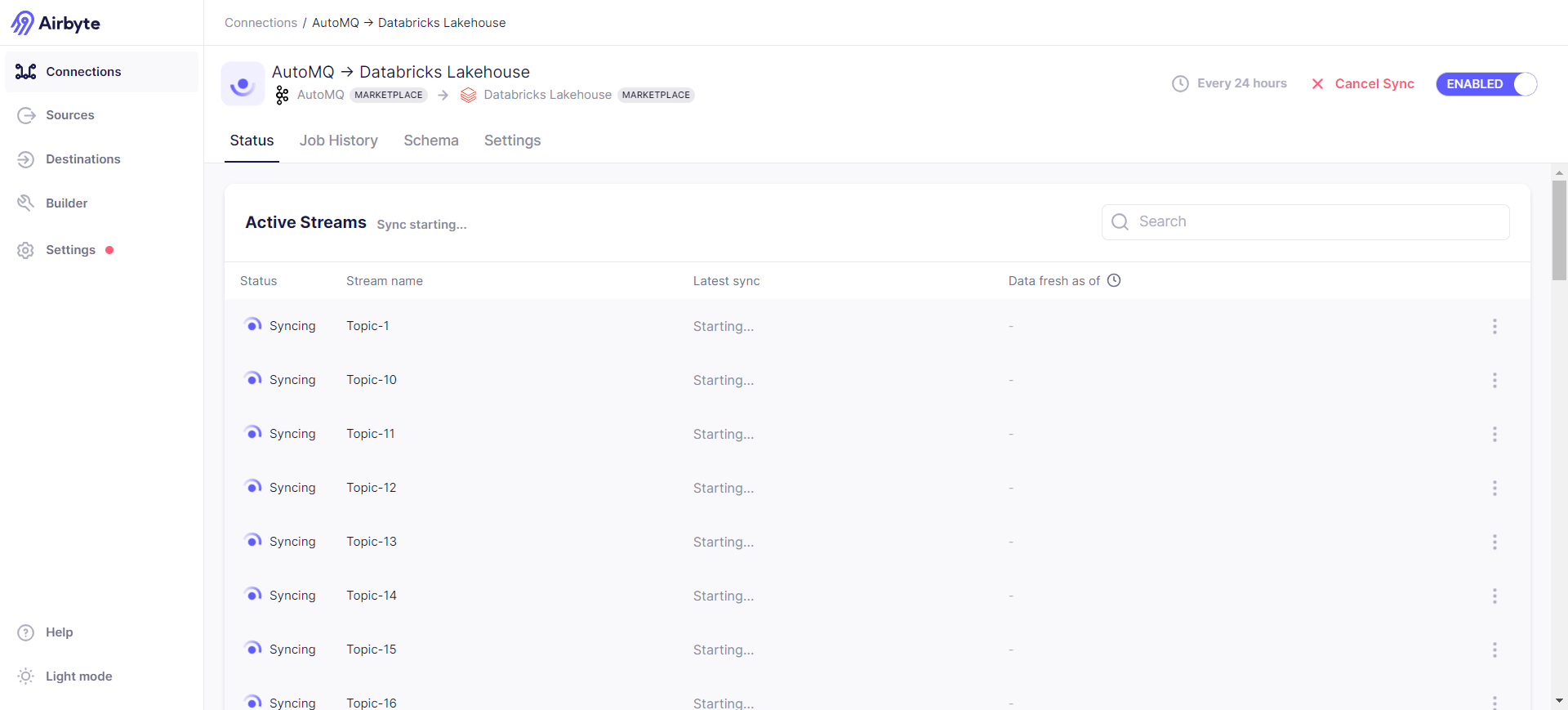
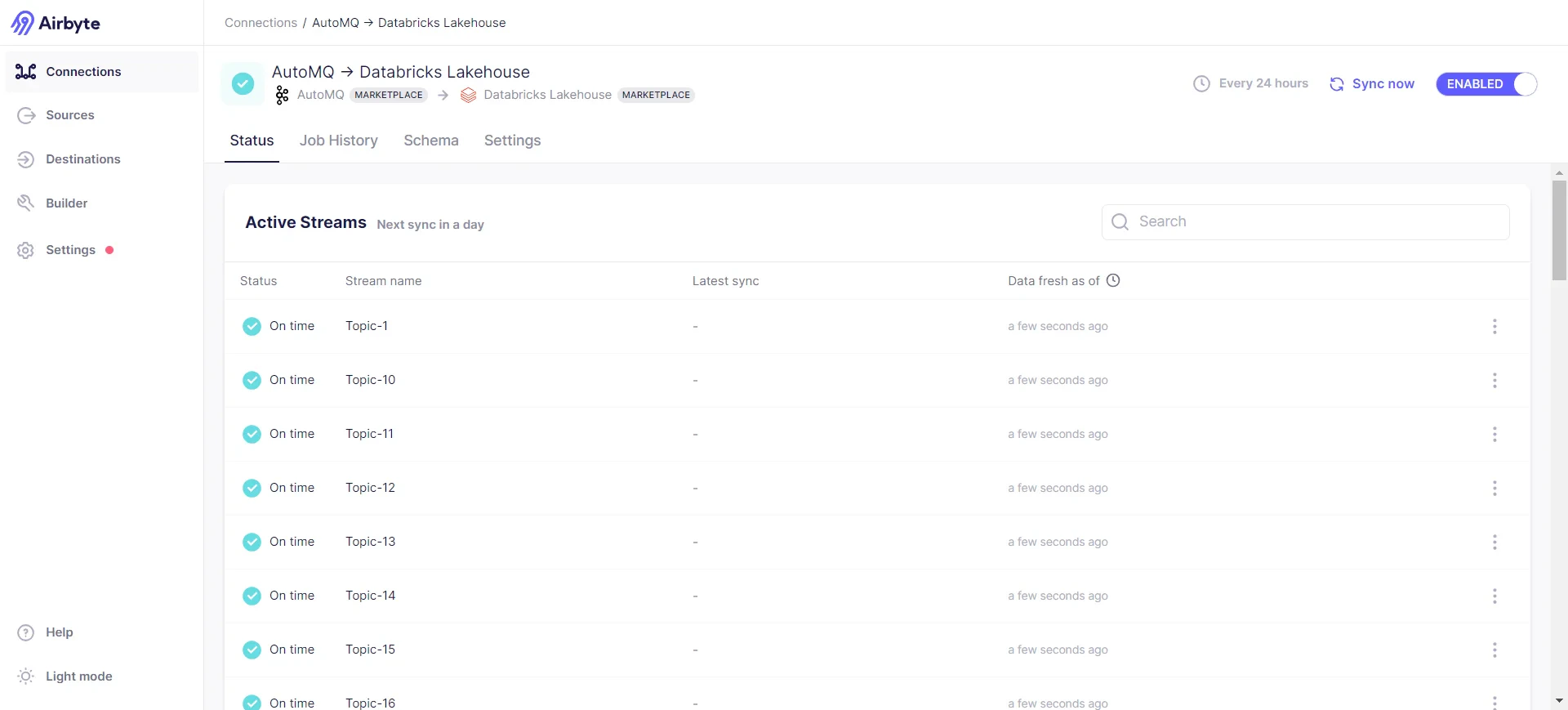
With both the data source and data endpoint ready, we can now establish a connection. Select Airbyte’s left sidebar -> Connections -> choose the data source and data endpoint -> establish connection. After successfully connecting, you need to select the mode of data transmission. Here, both incremental sync and full sync options are provided. I opted for the full sync mode: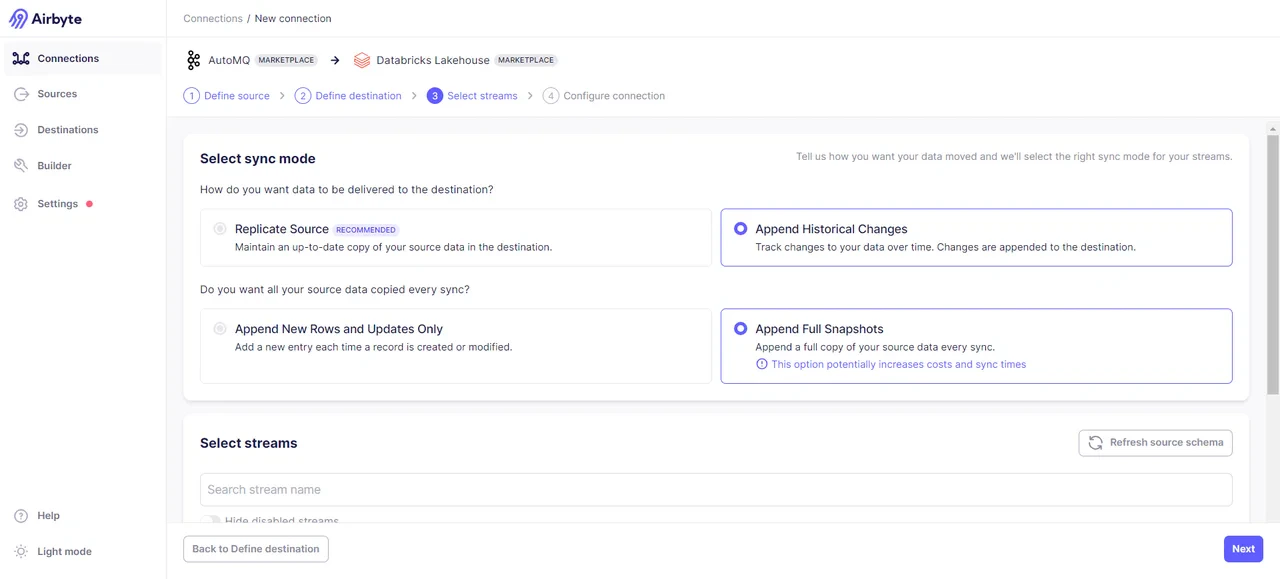
Verification Results
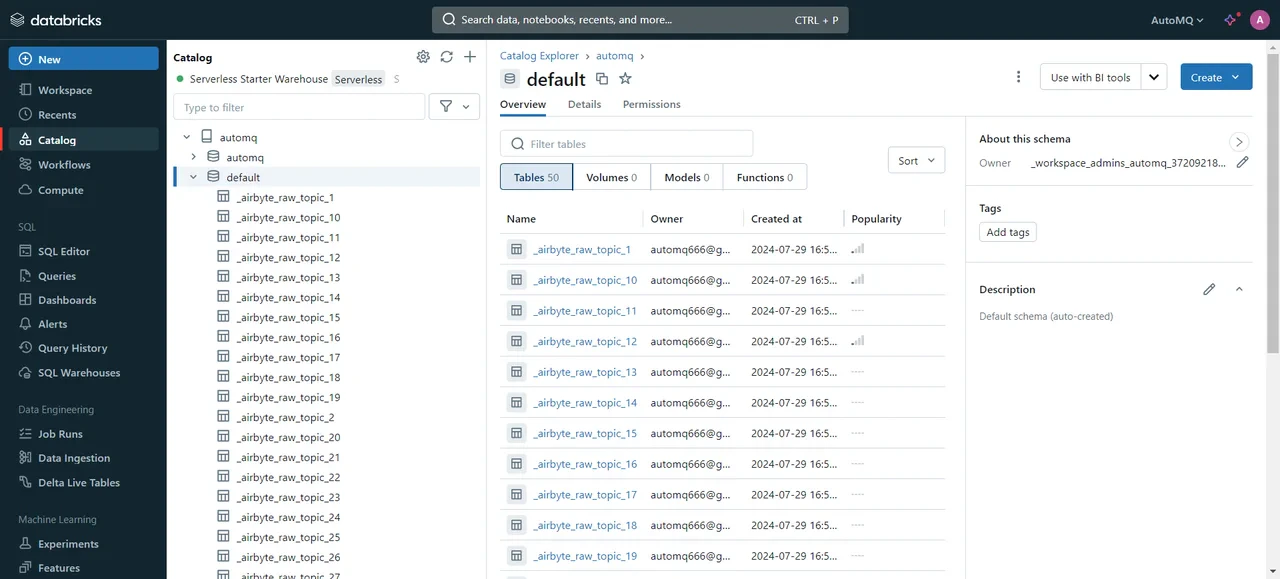
After successfully transferring the data, we can access the Databricks cluster to review the transfer results: