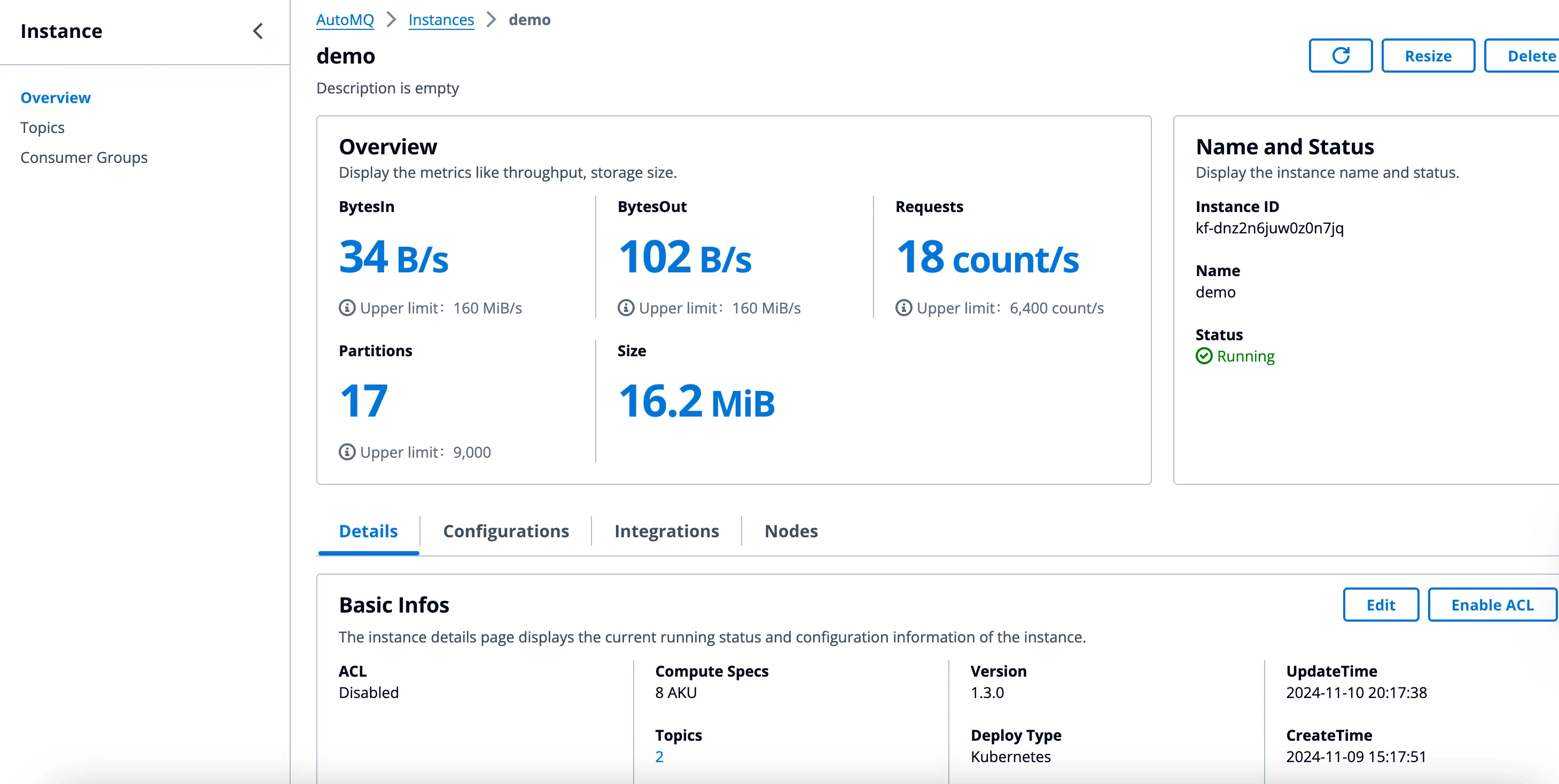
An AutoMQ instance is the top-level data plane resource and corresponds to an independent Apache Kafka® cluster.
Instance lifecycle
Creating: AutoMQ is provisioning cloud resources and deploying the instance. Configuration changes are unavailable until creation completes.Running: The instance can serve Kafka client requests and management APIs.Modifying: AutoMQ is applying a configuration change or version upgrade. Additional changes are unavailable until the operation completes.Service Exception: The instance cannot provide normal service because instance deployment, a change operation, or underlying infrastructure failed.Deleting: AutoMQ is deleting the instance and releasing its managed resources. The instance no longer accepts client traffic.Deleted: The instance and its managed resources have been released. The instance cannot be recovered.
Create an Instance
Sign in to the AutoMQ Console.
In the navigation pane, choose Instances , and then choose Create Instance .
If prompted, select the Deployment Profile for the instance.
Follow the wizard to configure the instance settings, capacity, additional settings, and IAM permissions. The wizard displays only the settings supported by the selected environment and AutoMQ version.
Review the configuration and choose Create .
Wait until the instance status is Running .
View an Instance On the Instances page, choose the instance name. The details page displays status, endpoints, capacity, network, security, configuration, metrics, and related resources.
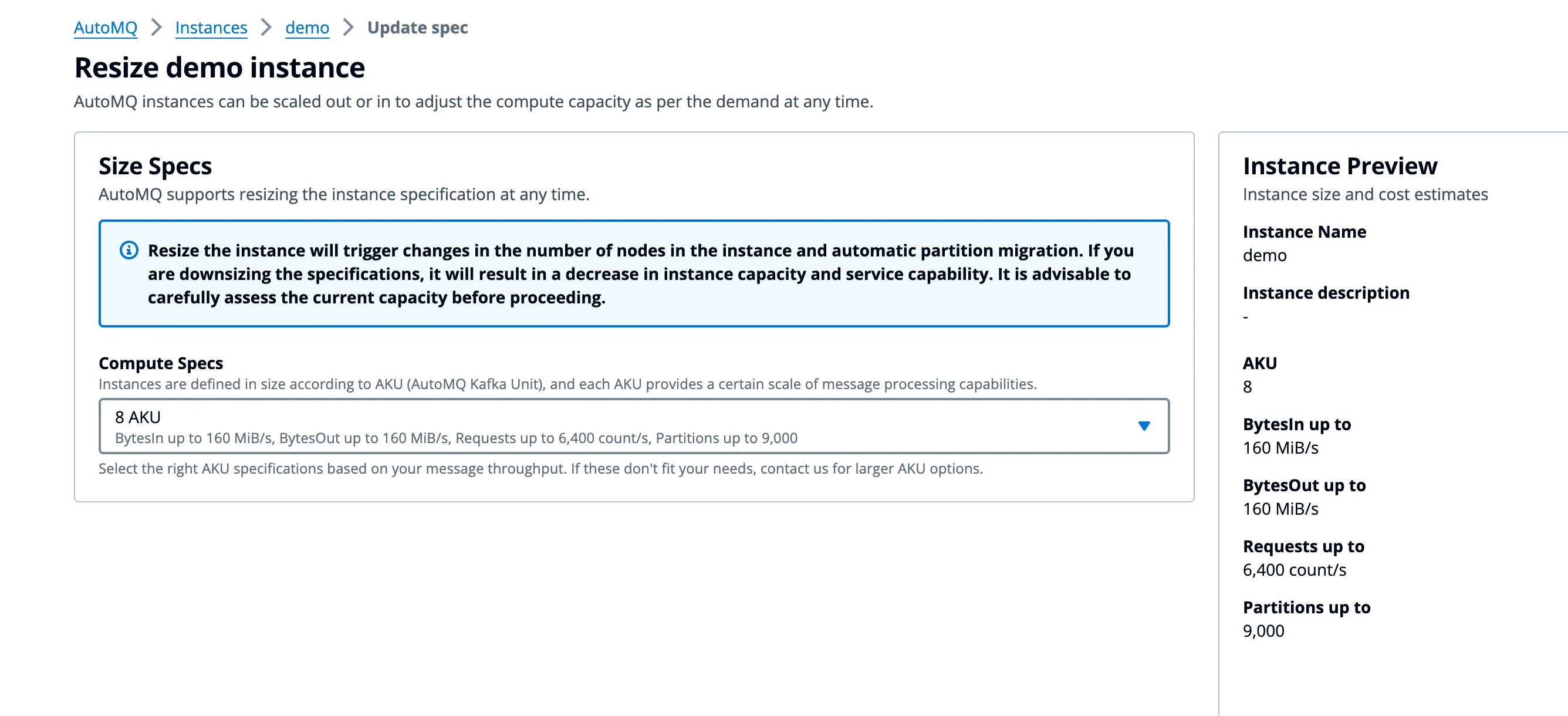
Scale an Instance
Open the instance details page.
Choose Change Configuration .
Update the capacity settings and confirm the change.
Wait until the instance returns to Running .
Upgrade an Instance Review Release Notes before upgrading. The AutoMQ Console must support the target instance version; if required, first follow Upgrade Environment Version .
Open the instance details page.
Choose Upgrade when a target version is available.
Review the target version and confirm the rolling upgrade.
AutoMQ performs instance upgrades as rolling operations. Monitor application error rates and latency throughout the change.
Delete an Instance On the Instances page, open the actions menu for the instance, choose Delete , and confirm the operation.
Deleting an instance cannot be undone. Verify the instance name before you confirm the operation.