Integrate AutoMQ’s Kafka-compatible Table Topic with AWS Glue for data lake ingestion, analytics, and querying without ETL. Scale with cloud-native and cost-efficient solutions.
AutoMQ Table Topic supports integration with Iceberg, allowing for streaming data into the lake for analysis and queries, while eliminating the need for ETL configuration and maintenance. This document explains how to configure the integration of Table Topic with Glue in an AWS environment.
To use the AutoMQ Table Topic feature in an AWS environment, the following conditions must be met:
Version Constraints: The AutoMQ instance must be version >= 1.4.1.
Instance Constraints: The Table Topic feature must be enabled at the time of creating the AutoMQ instance. It can only be used if enabled during creation, as it cannot be activated later.
Resource Requirements: On AWS, Table Topic allows you to use AWS Glue as a Data Catalog or AWS S3 Tablebucket as a Data Catalog.
When using Glue Catalog, data lake tables need to be stored in an S3 Bucket. We recommend creating an available Bucket in the target region in advance to store Iceberg table data for the long term.
Step 2: Create an AutoMQ Instance and Enable the Table Topic Feature
To use the AutoMQ Table Topic feature, it must be enabled during instance creation to facilitate streaming data into the lake. Refer to the following configuration when creating the instance:
Enable Table Topic.
Select Glue as the Catalog type.
Set the S3 Bucket used by Glue Catalog. We recommend selecting the data lake Bucket prepared in Step 1.
Note:After enabling the Table Topic for an AutoMQ instance, not all Topics will automatically activate the table transformation feature. Configuration is required at the individual Topic level to stream data into the lake as needed.To utilize Table Topics, you must enable them during the instance creation process. After an instance is created, this setting cannot be modified.
Step 3: Create a Topic and Configure a Materialized View Table
Once the Table Topic feature is enabled in the AutoMQ instance, you can set up a materialized view table as necessary when creating a Topic. Follow these steps:
Navigate to the instance from Step 2, find the Topic list, and click Create Topic.
In the configuration for creating the Topic, enable Table Topic conversion and configure the following parameters:
Namespace: A namespace serves to segregate different Iceberg tables, analogous to a Database in the Data Catalog. It’s advisable to assign parameter values based on business ownership.
Schema Constraint Type: This setting determines whether a Topic message complies with Schema constraints. Selecting Schema enables these constraints, requiring message Schemas to be registered in AutoMQ’s built-in SchemaRegistry. Messages must then be strictly formatted according to the Schema, and upcoming Table Topics will use this Schema’s fields to populate the Iceberg table. Choosing Schemaless signifies that the message content lacks explicit Schema constraints; in this scenario, the message Key and Value are used as a single field to populate the Iceberg table.
Click Confirm to create a Topic that supports streaming tables.
Step 4: Produce Messages and Query Iceberg Table Data in Real-time
After configuring the AutoMQ instance and creating the Table Topic, you can proceed with testing data production and real-time querying of data in Iceberg tables.
Click to enter the Topic details, navigate to the Produce Message tab, input the test message Key and message Value, and send the message.
Go to the AWS Glue Console to view the Iceberg database and table created by AutoMQ.
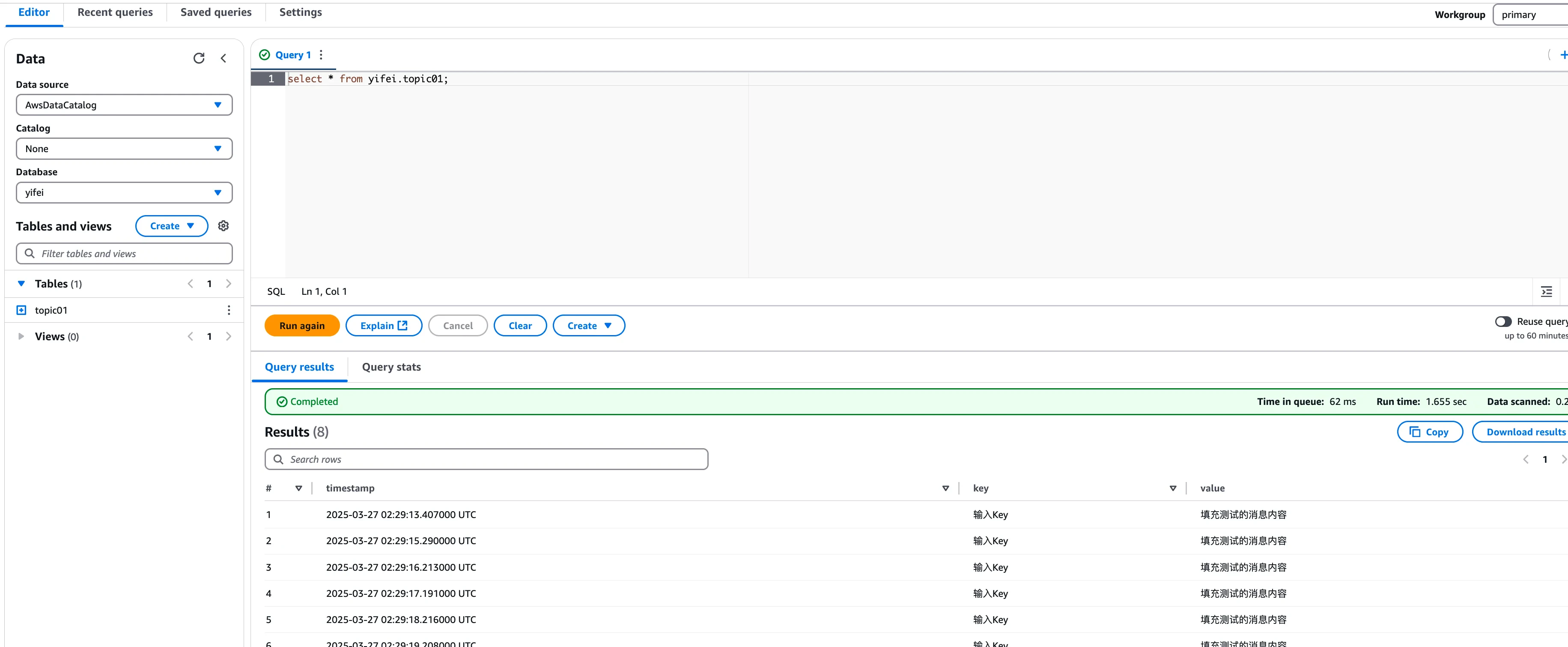
Click View Data to enable AWS Athena to query the table data in Glue, allowing you to see how AutoMQ transforms Kafka messages into corresponding data records in real-time. Users can also utilize other query engines for analysis and computation.
Was this page helpful?
Assistant
Responses are generated using AI and may contain mistakes.